How Does a Cricut Work? Complete Beginner’s Guide 2026
A Cricut is a computer-controlled cutting machine that uses a small blade (or other tools) to cut shapes, letters, and designs from materials like vinyl, paper, and cardstock. You create or import a design in Cricut’s free software, Design Space, send it to the machine, and the Cricut moves its cutting head across a material mat to cut your design precisely. It works with over 100 materials and requires no artistic drawing skill to produce professional-looking results.
Table of Contents
Key Takeaways
- A Cricut machine is a precision cutting plotter controlled by software, not a printer or laser cutter.
- Cricut Design Space is the free companion app where you build, import, and prepare designs before cutting.
- The machine holds materials on a sticky cutting mat and moves a blade (or pen, scoring wheel, or foil tool) in an X-Y axis pattern to cut shapes.
- Three main models exist in 2026: Cricut Joy, Cricut Explore 3, and Cricut Maker 3, each suited to different project scales and material types.
- You can cut over 100 materials including vinyl, iron-on, cardstock, leather, balsa wood, and fabric.
- A computer or mobile device is required to run Design Space, but the machine itself stores no designs internally.
- Beginner mistakes most often involve wrong blade pressure, skipping the mat, or not calibrating blade depth.
- A Cricut machine is worth the investment for anyone who makes crafts, custom gifts, home decor, or small business products regularly.
What Is a Cricut Machine and What Does It Do?
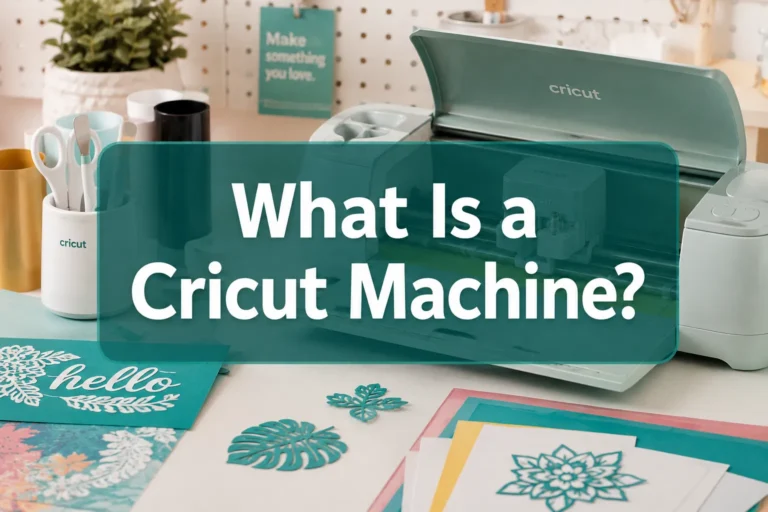
A Cricut machine is a home cutting plotter that precisely cuts, scores, draws, or embosses designs on a wide range of flat materials. It does not print ink onto surfaces, instead, it physically moves a blade or tool across material to cut out shapes you’ve designed digitally.
The name “Cricut” comes from the word “cricket,” referencing the machine’s small, precise movements. The machine connects to a computer, tablet, or smartphone via Bluetooth or USB. Once a design is sent from Cricut Design Space, the machine’s motorized cutting head moves along two axes (left-right and forward-back) to trace and cut the design with accuracy measured in fractions of a millimeter.
Cricut machines are used for making custom stickers, T-shirt transfers, greeting cards, home decor signs, labels, wedding stationery, and much more. In 2026, Cricut has positioned itself as a full creativity platform, expanding beyond cutting into a broader ecosystem of tools and materials.
How Does a Cricut Work Mechanically?
The core mechanism is straightforward: a motorized carriage holds a blade or tool and moves across a cutting mat while the mat itself feeds in and out of the machine. This two-axis movement (X for left-right, Y for forward-back) allows the blade to trace any shape a design file specifies.
Here is the basic cutting sequence:
- Load the material onto a sticky cutting mat so it stays flat and does not shift.
- Feed the mat into the machine by pressing the load button; rollers grip the mat.
- Send the design from Design Space to the machine via Bluetooth or USB.
- The machine cuts: the carriage moves the blade in precise X-Y paths while the mat moves in and out.
- Unload the mat, then carefully peel the cut design away from the backing material.
The blade depth and pressure settings are adjusted either automatically (on Maker 3 and Explore 3 models) or manually by turning the blade housing. Different tools, fine-point blade, deep-point blade, rotary blade, scoring wheel, pen, snap into the carriage depending on the task.
What Materials Can You Cut With a Cricut?
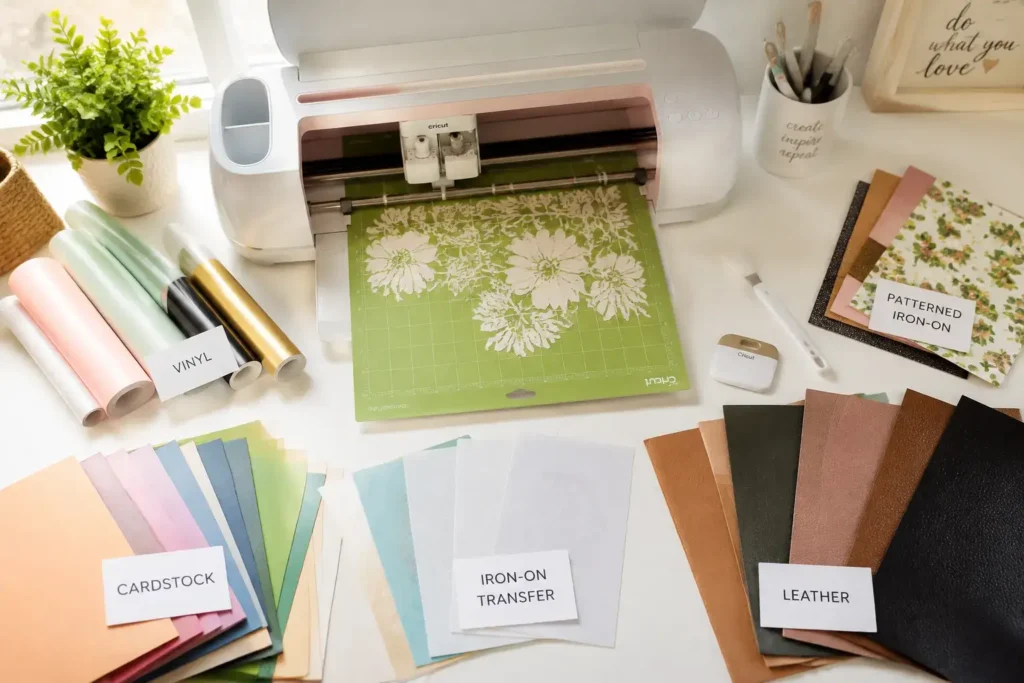
A Cricut can cut over 100 materials, ranging from thin paper to thick leather and balsa wood, depending on the model. The Cricut Maker 3 handles the widest range due to its adaptive tool system and higher cutting force (up to 4 kg of force).
Common materials by category:
- Paper and cardstock: Printer paper, construction paper, cardstock up to 300 gsm
- Vinyl: Adhesive vinyl for stickers and decals, removable vinyl for walls
- Iron-on (HTV): Heat transfer vinyl for T-shirts, bags, and fabric items
- Fabric: Cotton, felt, denim, canvas (Maker 3 with rotary blade)
- Specialty materials: Leather, faux leather, cork, balsa wood, foam sheets, acetate
Choose your model based on materials:
- Choose Cricut Joy if you primarily cut vinyl and cardstock for small projects.
- Choose Cricut Explore 3 if you want a mid-range machine for most common craft materials.
- Choose Cricut Maker 3 if you need to cut fabric, leather, or thicker materials regularly.
How Does Cricut Design Space Work?
Cricut Design Space is the free browser-based and app-based software that controls every Cricut machine. It is where you design, import, size, and prepare files before sending them to the cutter.
Design Space works on Windows, Mac, iOS, and Android. It does not require an internet connection for basic cutting once designs are synced, but an account and initial connection are needed to access the full image library.
Key things you can do in Design Space:
- Upload your own SVG, PNG, JPG, or DXF files for cutting
- Use the built-in image library (some images are free; others require a Cricut Access subscription)
- Resize, rotate, group, and weld design elements on a virtual canvas
- Set material type and blade pressure before sending to the machine
- Use the Print Then Cut feature to print a design on a home printer, then have the Cricut cut around it precisely
The software automatically detects which tools are loaded in the machine and prompts you to load the correct blade or pen for each step of a multi-layer project.
What Is the Difference Between Cricut Models?
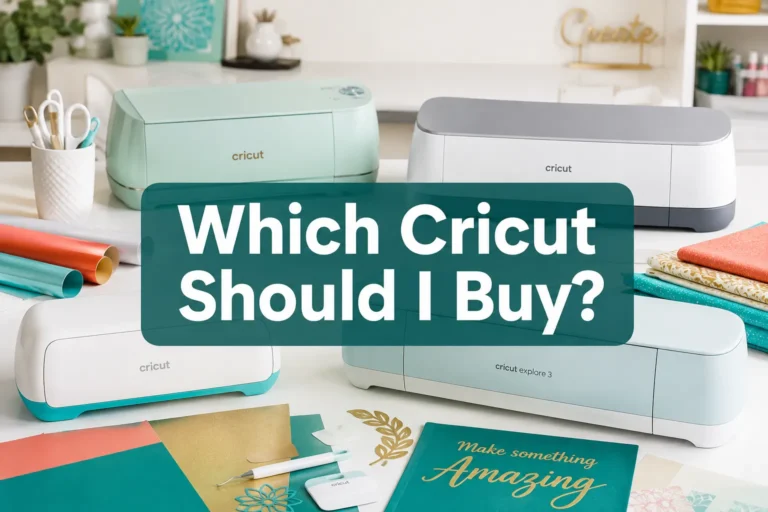
The three main Cricut models in 2026 differ in cutting force, compatible materials, machine size, and maximum material width. The Cricut Joy is the smallest and most portable; the Cricut Maker 3 is the most capable.
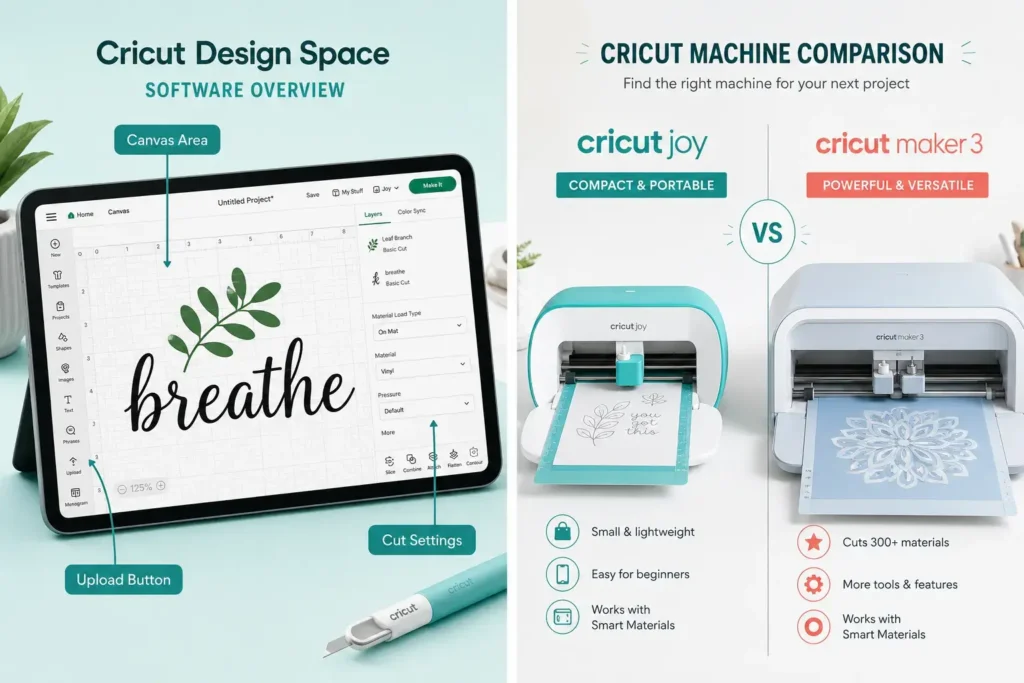
| Model | Max Cut Width | Best For | Fabric Cutting |
|---|---|---|---|
| Cricut Joy | 4.5 inches | Cards, labels, small vinyl | No |
| Cricut Explore 3 | 12 inches | Vinyl, iron-on, cardstock | Limited |
| Cricut Maker 3 | 12 inches | Fabric, leather, wood, all materials | Yes (rotary blade) |
All three models use Design Space and are compatible with Cricut Access subscription content.
How Much Does a Cricut Machine Cost?
Cricut machine prices in 2026 range from roughly $100 for the Cricut Joy to $400 or more for the Cricut Maker 3 at retail. Prices fluctuate with sales, bundles, and retailer promotions, so checking the official Cricut site or major retailers directly gives the most current pricing.
Beyond the machine itself, factor in these ongoing costs:
- Cutting mats: $10-$20 each; replaced every 25-50 uses depending on material
- Blades: $8-$20 each; standard blades last 3-6 months with regular use
- Materials: Vinyl, cardstock, and iron-on sheets vary widely by project
- Cricut Access subscription: Optional; provides access to thousands of images and fonts for a monthly or annual fee
For beginners, a starter bundle that includes a machine, a few mats, and basic materials is often the most cost-effective entry point.
Cricut vs. Silhouette: Which Is Better?
Cricut and Silhouette Cameo are the two leading home cutting machine brands, and neither is universally better, the right choice depends on how you plan to use it.
Choose Cricut if:
- You want a larger built-in design library and easier beginner software
- You plan to cut fabric or need the Maker 3’s high cutting force
- You prefer a machine that auto-detects blade settings
Choose Silhouette Cameo if:
- You want more control over design software without subscription fees
- You plan to do a lot of print-and-cut work with a wider cutting area
- You already use professional design tools like Adobe Illustrator
Cricut’s Design Space is generally considered more beginner-friendly, while Silhouette Studio offers more advanced customization for experienced designers.
Do I Need a Computer to Use a Cricut?
Yes, a computer, tablet, or smartphone running Cricut Design Space is required to operate any Cricut machine. The machine itself has no screen or internal storage for designs, it is entirely dependent on the Design Space app to receive cutting instructions.
Design Space runs on:
- Windows 10 or later (desktop app or browser)
- macOS 11 or later
- iOS 16 or later (iPhone/iPad)
- Android 10 or later
A Bluetooth connection is the most common setup, though USB is also supported on desktop. An internet connection is needed to log in, sync projects, and access the image library, but some offline cutting is possible once a project is saved to the device.
Is a Cricut Worth It for Beginners?
A Cricut is worth the investment for beginners who have a clear use case, such as making custom gifts, personalizing clothing, creating home decor, or running a small craft business. For someone who is casually curious but has no specific project in mind, the upfront cost and learning curve may not justify the purchase right away.
Signs a Cricut is a good fit for you:
- You regularly buy custom-made items you could produce yourself
- You want to make personalized gifts for multiple people
- You plan to sell handmade products
- You enjoy paper crafts, sewing, or DIY home projects
The learning curve is moderate. Most beginners complete their first successful project within one to two hours of unboxing, especially following the guided setup in Design Space.
Common Cricut Mistakes Beginners Make
The most frequent beginner errors involve incorrect settings, worn mats, and skipping calibration. These mistakes cause jagged cuts, incomplete cuts, or designs that shift during cutting.
Top mistakes to avoid:
- Wrong material setting in Design Space: Always match the software’s material setting to what is physically loaded. Even small mismatches cause the blade to cut too shallow or too deep.
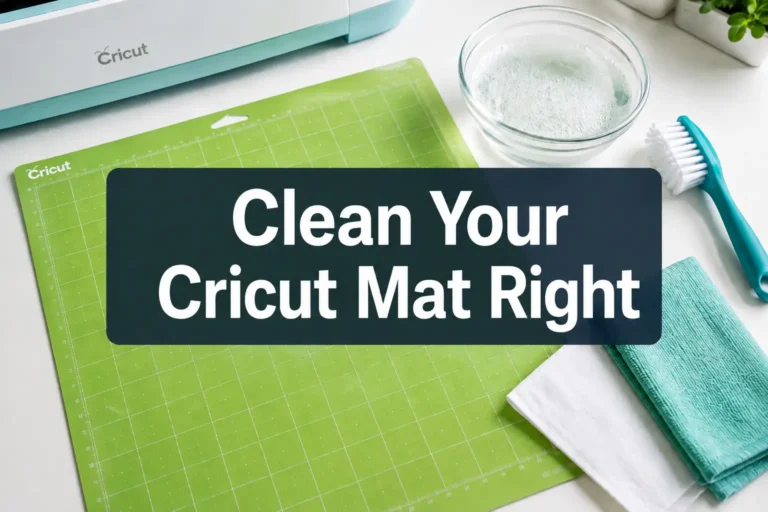
- Using a worn-out mat: A mat that has lost its stickiness lets material shift mid-cut, ruining the design. Replace or re-stick mats regularly.
- Skipping the test cut: Always run a small test cut in a corner of the material before cutting a full design, especially with new materials or a new blade.
- Peeling material incorrectly: Bend the mat away from the material rather than peeling the material off the mat, this prevents tearing.
- Not weeding vinyl before transfer: Removing excess vinyl (weeding) before applying transfer tape is a step beginners often rush, leading to messy results.
Can You Use a Cricut Without a Mat?
Some materials can be cut without a mat using Cricut’s matless cutting feature, but this applies only to specific situations. Cricut Smart Materials (Smart Vinyl, Smart Iron-On, Smart Paper) are designed to feed directly into Explore 3 and Maker 3 machines without a mat for cuts up to 12 feet long.
For all other materials, standard vinyl, cardstock, fabric, leather, a cutting mat is required to hold the material flat and prevent shifting. Skipping the mat with non-Smart Materials will jam the machine or produce inaccurate cuts.
How Long Does a Cricut Blade Last?
A standard Cricut fine-point blade typically lasts through 3 to 6 months of regular hobby use, or roughly 40 to 60 hours of cutting time. Blade life varies significantly based on material type, cutting cardstock and vinyl dulls a blade much more slowly than cutting leather or thick fabric.
Signs your blade needs replacing:
- The machine tears rather than cuts cleanly
- Designs show ragged or incomplete cut lines
- Increasing the pressure setting no longer improves cut quality
Blades are inexpensive (around $8-$15 for a standard replacement) and should be treated as a consumable supply, not a long-term component.
What Can You Make With a Cricut Machine?
A Cricut machine can produce a wide range of finished products across paper crafts, apparel, home decor, and personalized gifts. The range of what is possible expands significantly with the Maker 3’s ability to cut fabric and thicker materials.
Popular project categories:
- Apparel: Custom T-shirts, hoodies, hats, and tote bags using iron-on vinyl
- Home decor: Wall decals, wood signs, pillow covers, and framed paper art
- Stationery and cards: Wedding invitations, birthday cards, gift tags, and envelopes
- Labels and organization: Pantry labels, gift boxes, and custom packaging
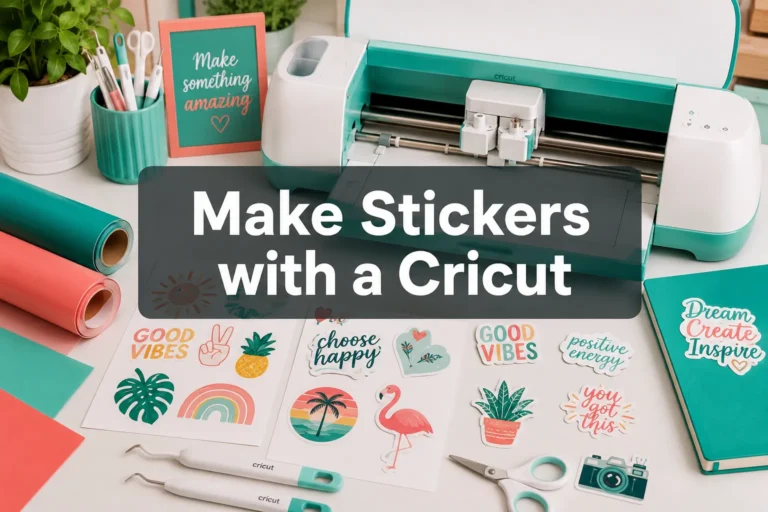
- Small business products: Custom stickers, branded merchandise, and product packaging inserts
For beginners, starting with a simple vinyl decal or iron-on shirt project builds confidence before moving to multi-layer or multi-material designs.
How Does a Cricut Work With Design Space: Step-by-Step
Understanding how does a Cricut work end-to-end means following the full workflow from software to finished cut. Here is the complete process for a first project:
- Create a Cricut account and download Design Space on your device.
- Open a new project and either upload a design file (SVG or PNG) or choose one from the library.
- Size and arrange the design on the canvas to match your material dimensions.
- Select your material type from the dropdown menu (e.g., “Permanent Vinyl” or “Everyday Iron-On”).
- Load your material onto the correct cutting mat (green standard grip for vinyl; blue light grip for paper).
- Press “Make It” in Design Space, the software shows a mat preview and confirms blade settings.
- Load the mat into the machine by pressing the load/unload button.
- Press the flashing Cricut button on the machine to begin cutting.
- Unload the mat when cutting is complete, then weed and apply your design.
Cricut Machine Not Cutting Properly: How to Fix It
When a Cricut is not cutting properly, the cause is almost always one of four things: a dull blade, the wrong material setting, a dirty or worn mat, or incorrect blade installation. Fixing the issue is usually straightforward once the cause is identified.
Troubleshooting checklist:
- Incomplete cuts (not cutting all the way through): Increase the pressure setting by one step, or replace the blade.
- Tearing or dragging material: The blade is dull, replace it.
- Design shifting mid-cut: The mat has lost grip, clean with a lint roller or replace the mat.
- Blade not engaging at all: Check that the blade housing is fully clicked into the carriage.
- Jagged or wobbly lines: Material is not flat on the mat, or the mat is not feeding straight, re-load and ensure even pressure.
Running a test cut after each adjustment helps confirm whether the fix worked before committing a full sheet of material.
FAQ
Does a Cricut machine print as well as cut?
A Cricut does not print on its own. It cuts, scores, draws, and embosses. The Print Then Cut feature lets you print a design on a home inkjet or laser printer first, then load it into the Cricut to cut precisely around the printed design.
How long does it take to learn how to use a Cricut?
Most beginners complete their first project within one to two hours. Becoming comfortable with Design Space and multi-layer projects typically takes two to four sessions of hands-on practice.
Can a Cricut cut wood?
The Cricut Maker 3 can cut thin balsa wood (up to 1/16 inch) and basswood sheets using the knife blade. Standard Explore 3 and Joy models cannot cut wood.
Do I need a Cricut Access subscription?
No. Cricut Access is optional. You can upload your own SVG files or use the limited selection of free images in Design Space without a subscription. Access is useful if you regularly use Cricut’s built-in image and font library.
What is the difference between adhesive vinyl and iron-on vinyl?
Adhesive vinyl (also called permanent or removable vinyl) sticks directly to surfaces like mugs, windows, and walls. Iron-on vinyl (HTV) bonds to fabric using heat from an iron or heat press and is used for apparel and fabric projects.
Can I use a Cricut for a small business?
Yes. Many small business owners use Cricut machines to produce custom stickers, apparel, packaging, and signage. The Maker 3 is the most practical model for higher-volume production due to its speed and material range.
What is weeding in Cricut crafting?
Weeding is the process of removing the excess (unwanted) material from around a cut design before transferring it to its final surface. A weeding tool (a small hook-tipped pick) is used to lift and peel away the waste material.
Can a Cricut cut fabric without a stabilizer?
Lightweight fabrics generally need to be stabilized with iron-on stabilizer or freezer paper before cutting to prevent shifting. The Cricut Maker 3’s rotary blade can cut some fabrics directly on a fabric grip mat without stabilizer.
Is Cricut Design Space free?
Yes, Design Space is free to download and use. A Cricut account is required. Some images and fonts in the library require a paid Cricut Access subscription, but uploading your own files is always free.
How does a Cricut work compared to a laser cutter?
A Cricut uses a physical blade or tool to mechanically cut materials. A laser cutter uses a focused beam of light to burn or vaporize material. Laser cutters can cut thicker materials and engrave, but they cost significantly more and require ventilation. A Cricut is safer, quieter, and more practical for home craft use.
Conclusion
Understanding how does a Cricut work removes the intimidation factor that keeps many beginners from getting started. At its core, the machine is a precise, software-controlled blade that follows digital designs, no artistic skill required, just a clear project goal and the right material settings.
Actionable next steps for 2026 beginners:
- Decide on your primary use case (vinyl decals, apparel, paper crafts, or fabric) and use that to choose between the Joy, Explore 3, or Maker 3.
- Download Cricut Design Space and explore the free project templates before buying a machine.
- Start with a simple single-layer vinyl or iron-on project to build confidence with the workflow.
- Stock up on replacement blades and an extra cutting mat from the start, these are the consumables that most often stall a project.
- Join the Cricut community forums or YouTube channels for model-specific tips as your projects grow in complexity.
A Cricut machine rewards consistent use. The more projects you run through it, the faster the workflow becomes second nature.